Accessing PharmaBill from other devices on LAN
One server PC, more counters over the shop network. Pharmacy plans include 2 computers.
Step by Step
- Ensure the server PC and device are on the same local network.
- Open the app on the device and choose Connect to Server.
- Enter the server address shown in Settings → LAN Access.
- Log in with role-based user accounts — done.
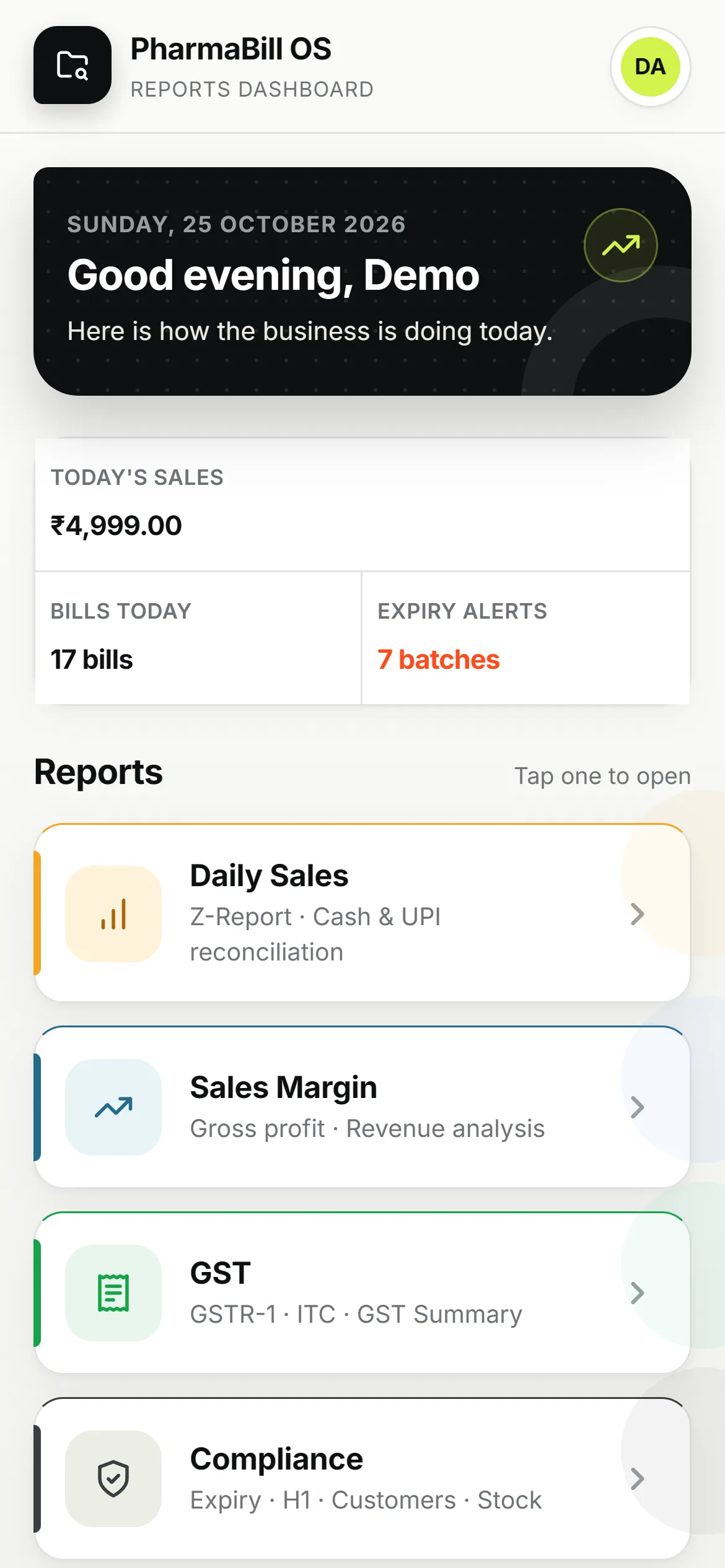
What You Can Connect
- Extra billing counters — laptops or PCs running PharmaBill connected to the server PC.
- Owner phone or tablet — the Mobile Reports Hub (Pro plan and above) opens in the browser for read-only daily sales, sales margin, GST reports and compliance reports.
- Doctor and nursing stations in hospitals.
Pharmacy plans (Essential, Pro, Lifetime) include 2 computers and up to 20 users. Extra computers on Essential and Pro cost ₹99/month each (₹990/year on yearly plans) up to 5; Lifetime, more than 5 computers or more than 20 users is a custom quote. Clinic and Hospital have unlimited computers and users. Phones and tablets are always free.
Make the Network Reliable
- Connect the server PC to the router with a cable and keep both on a UPS.
- Give the server PC a fixed (reserved) IP address in the router so the address never changes.
- Allow PharmaBill through Windows Firewall on private networks when Windows asks.
FAQ
- Does it need internet? No — devices talk to the server over the shop network.
- Can I check sales from outside the shop? Ask our team what is possible for your setup. See Mobile Monitoring.
Tip: still stuck? Message us on WhatsApp with a screenshot — most issues are solved in under 10 minutes.